Manga Translator Online

Translate text in manga pages, panels, and screenshots. Upload an image, review the AI-assisted wording in context, and keep the original artwork in view while you refine the result.

No image?Try one of these

features

A Practical Manga Translator for Image Text

Detect Speech Bubbles and Captions in Manga Images

Start with a manga page, panel, or screenshot. ImageTextEditor focuses on text embedded in the artwork so you can work from the image itself instead of retyping every bubble into a separate document. Review the detected lines before you rely on them, especially when lettering is small, vertical, or stylized.
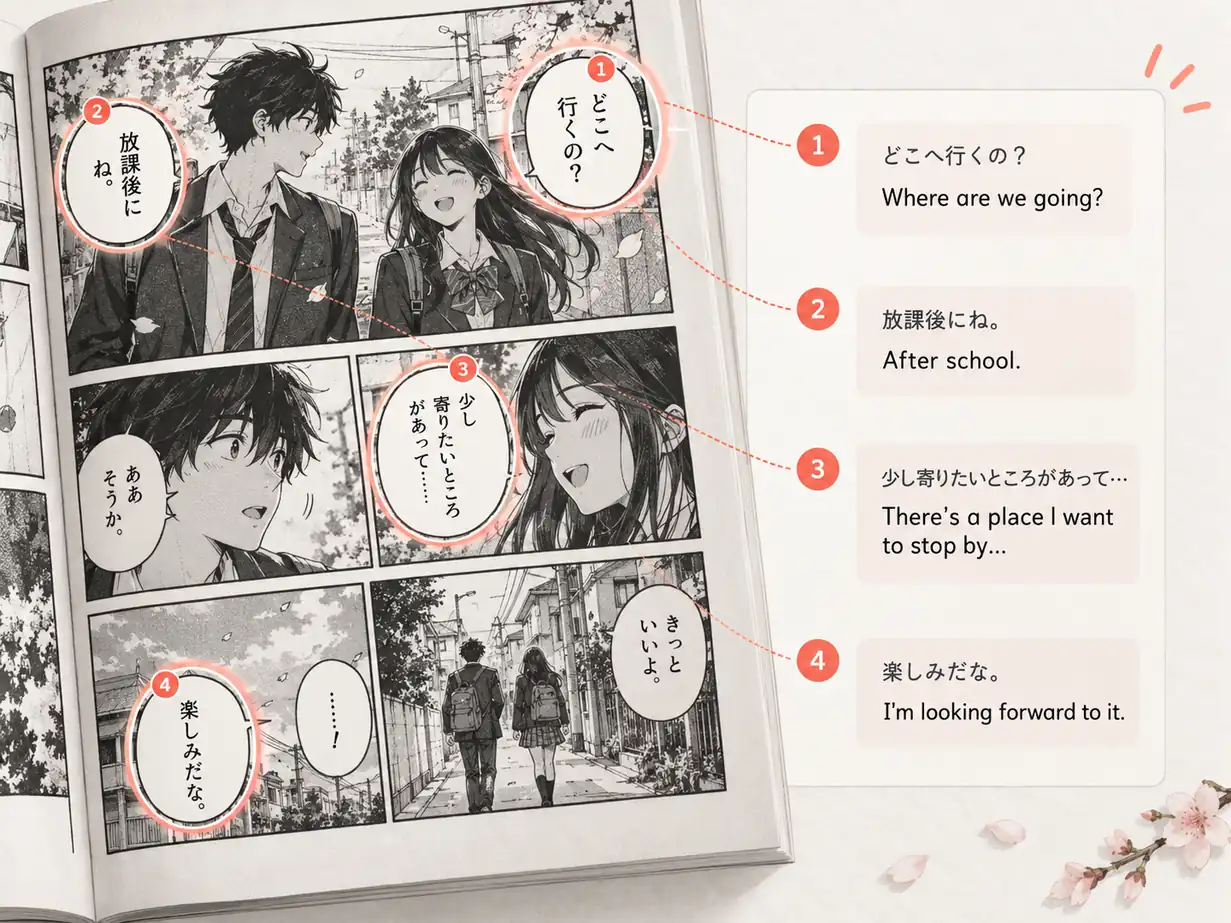
Manga translator highlighting Japanese speech bubbles and listing the detected lines beside the page.

Keep Panel Context While You Translate Manga

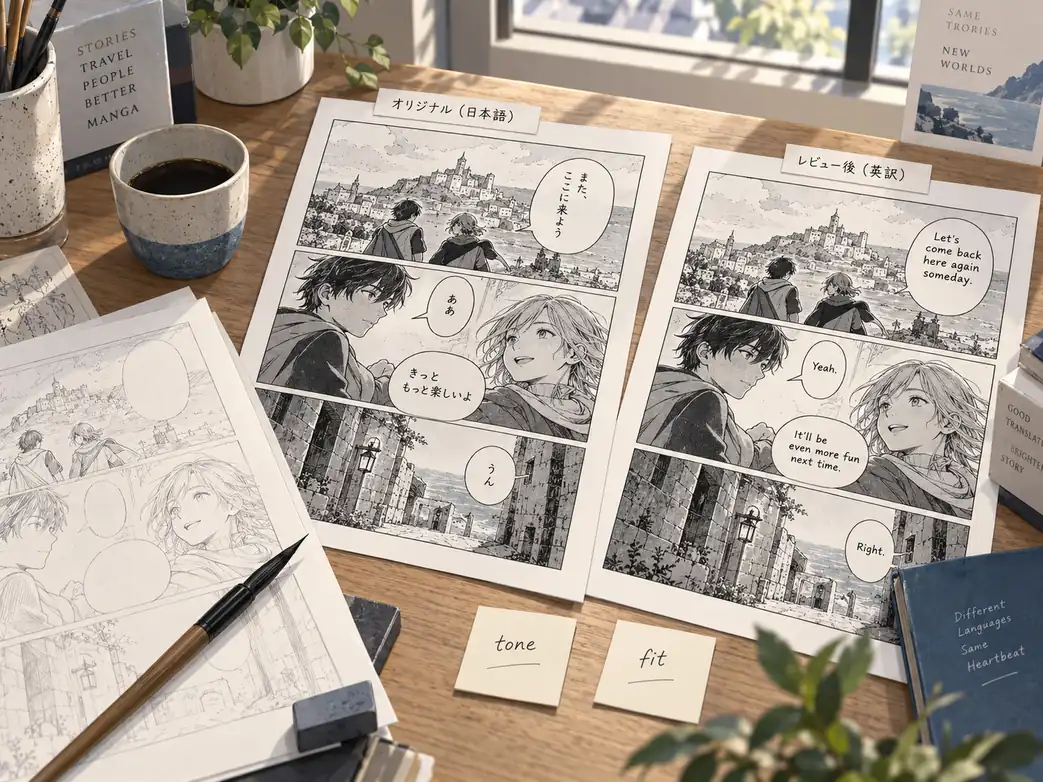
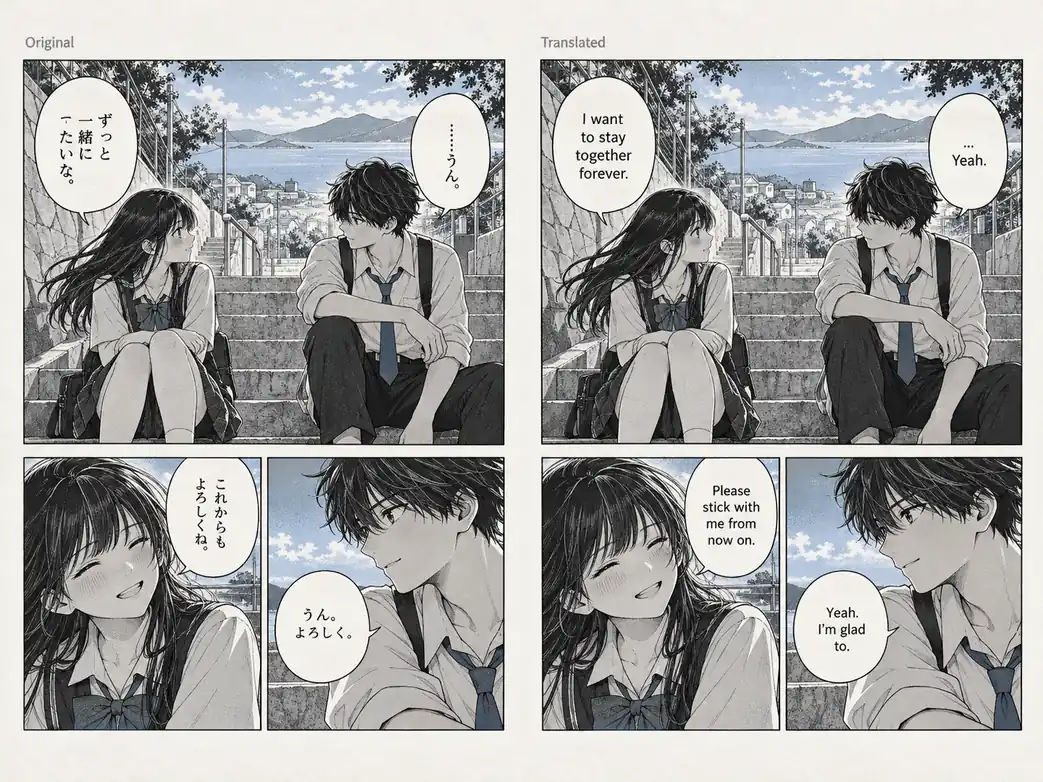
A useful manga translation needs more than isolated sentences. Compare the source page and the translated wording together so you can check panel order, speaker tone, names, honorifics, and whether each English line fits the original bubble.

Manga translator showing the same fictional page in Japanese and English with matching panel layout.

Translate Manga, Manhwa, and Webtoon Images

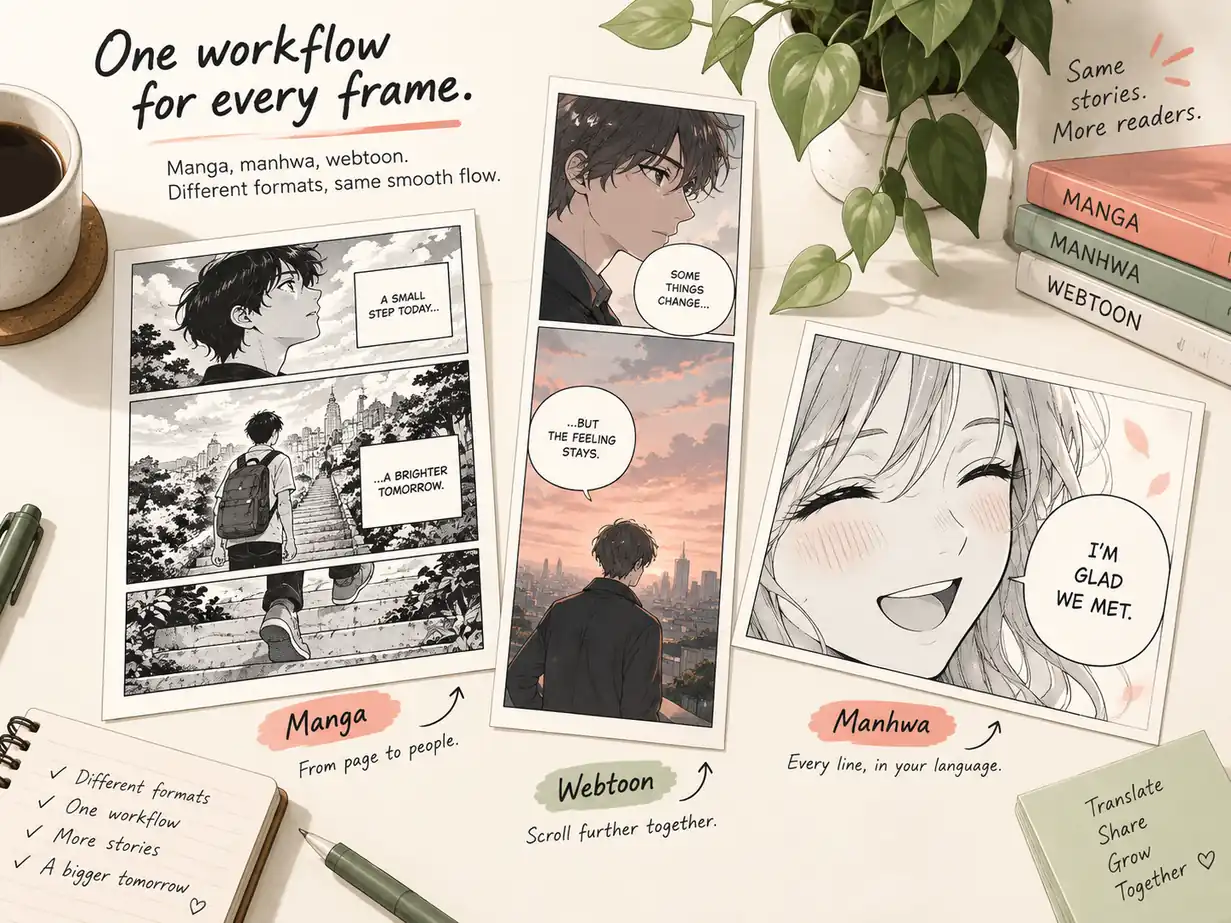
Use one browser-based image workflow for manga pages, manhwa panels, and vertical webtoon screenshots. After translation, use the image text editor when you need to polish lettering or add a note.

Manga translator workflow showing a manga page, manhwa strip, and webtoon panel with translated captions.

steps

How to Use a Manga Translator Online

Step 01

Upload a Manga Page or Panel

Choose a clear JPG, PNG, or WEBP image that contains the dialogue, captions, or sound effects you want to understand. A larger crop usually gives vertical and small text more room to be read.

Step 02

Choose a Target Language and Review the Draft

Let the image-text workflow identify visible wording and create a translation draft. Compare the result with the original page, then check names, honorifics, jokes, and reading order before using it.

Step 03

Refine the Lettering and Save Your Result

Use the translated wording as a reading aid or continue editing text inside the image. Make final changes to line breaks and placement before you share or archive the page.

cases

Manga Translator Use Cases for Readers and Creators

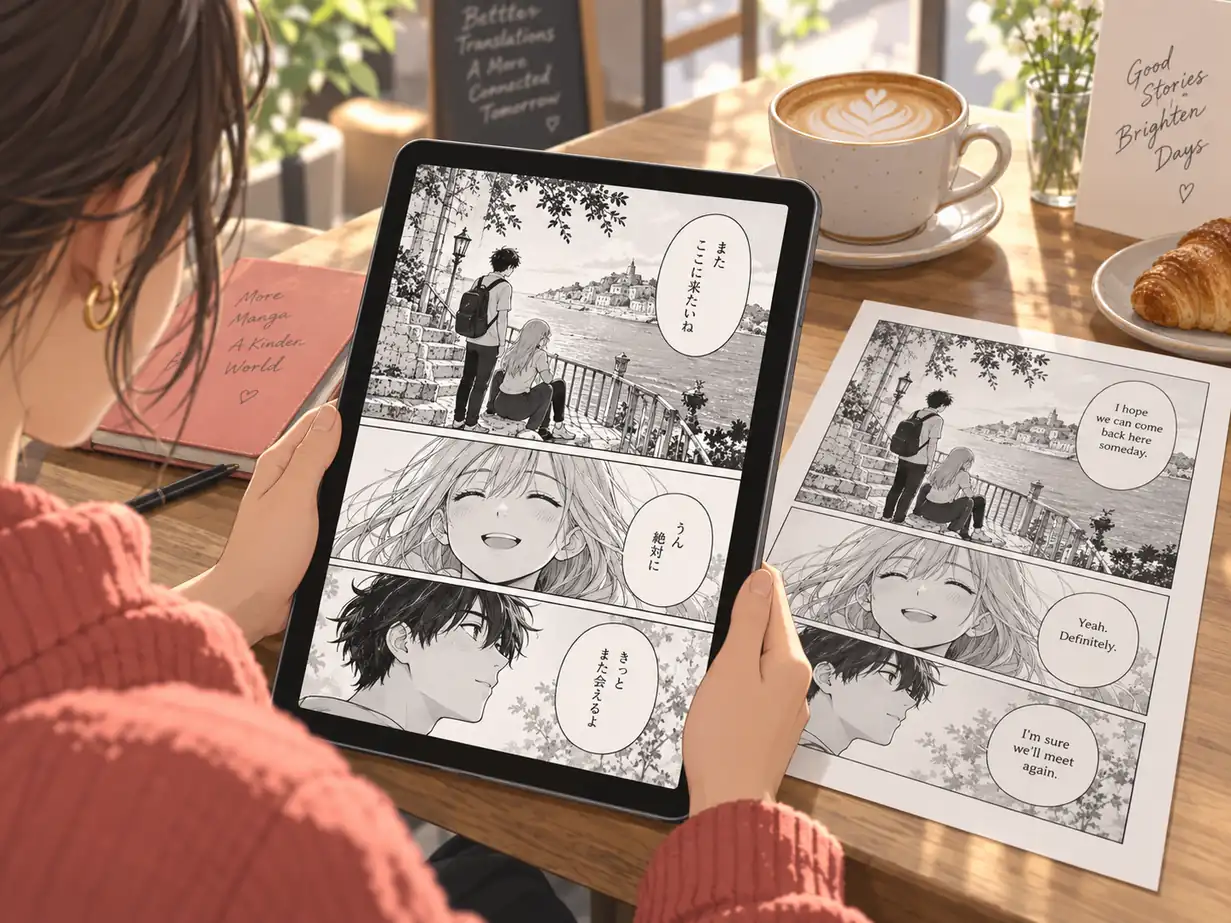
Reader comparing a Japanese manga page on a tablet with an English version on paper.

Read a Japanese Manga Page in English

Use a Japanese manga translator to get a working English version of a page you own or have permission to process. Keep the original image beside the translation so you can follow expressions, panel flow, and scene details while reading.

Manga creator reviewing original and English pages with notes about tone and bubble fit.

Prepare a Manga Translation Draft for Review

Creators and translators can use an AI manga translator for a first pass on dialogue, captions, and short effects. Review the draft for character voice, names, cultural references, and bubble fit before treating it as publishable lettering. If an old caption or label needs to be cleared first, use the text removal tool before adding new lettering.

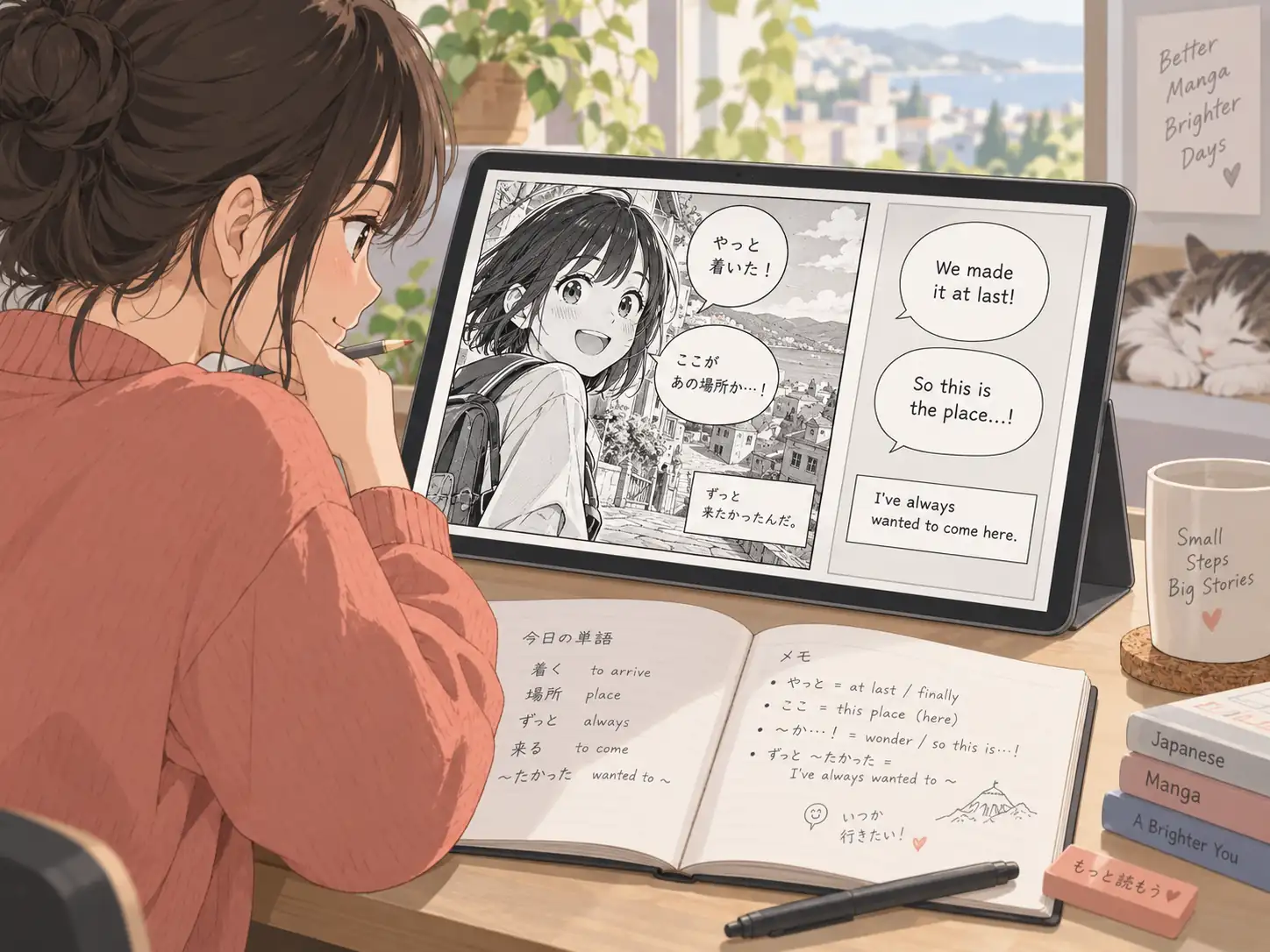
Student using a manga translator with a tablet, vocabulary notebook, and matching English panel.

Study Japanese Through Manga Context

Turn a manga screenshot into a visual reading aid for language study. Check vocabulary against the original, keep proper names intact, and use the screenshot editor when you need to annotate a panel.

benefits

Why Use ImageTextEditor as a Manga Translator

A focused image-text workflow helps you move from a manga image to a reviewable translation draft without losing the page context.

Built Around Text Inside Images

Work from speech bubbles, captions, signs, and sound effects that are part of the page artwork.

Panel Context Stays Visible

Keep the original page in view while you check wording, speaker order, and visual references.

Useful for Vertical Text

Japanese vertical lines and small stylized lettering can be reviewed in their original position instead of as detached text.

Browser-Based and Easy to Try

Open the manga translator in a modern browser and start with ImageTextEditor free daily credits.

Supports a Review-First Workflow

Treat the output as a draft you can inspect, adjust, and improve before sharing or publishing.

Continue Editing When Needed

After translation, use ImageTextEditor tools to add, remove, or refine text inside the image.

faq

Frequently Asked Questions

A manga translator reads text inside a manga page or panel, translates the wording into another language, and helps you review the result in the original visual context. ImageTextEditor is designed for image-text work, so the output should be checked as a translation draft.

Try the Manga Translator on Your Next Page

Upload a manga page or panel and see how ImageTextEditor can help you understand text in context. Start with a translation draft, then refine the lettering when your page needs more work.
Translate a Manga Image