

Add Text to Image Online

Add text to image files with captions, labels, and headlines.

No image?Try one of these

Your image stays in your browser. No upload, no sign-up.

Add text to image files with a clear message

Lemon tart photo with the caption Freshly Baked added above the pastries.

Give your photo the words it needs

Add a caption, a short headline, or a label to the image you already have. Tell the AI the exact words you want to include, keeping names, dates, and prices clear in your instructions. A few words can explain a photo, identify an item, or introduce an announcement. If old wording needs to come off first, use remove text from image before adding your new message.

Good Company text added beside a golden retriever without covering the dog.

Describe where the text should go

A useful caption leaves room for the subject. When you add text to image files, describe where you want the words to appear, such as the open sky above a landscape or the clear space beside a product. Include a simple style request, like dark lettering on a light background. Check the result for legibility and overlap, especially near faces, product details, and busy textures. Treat the result as a draft to review before sharing.

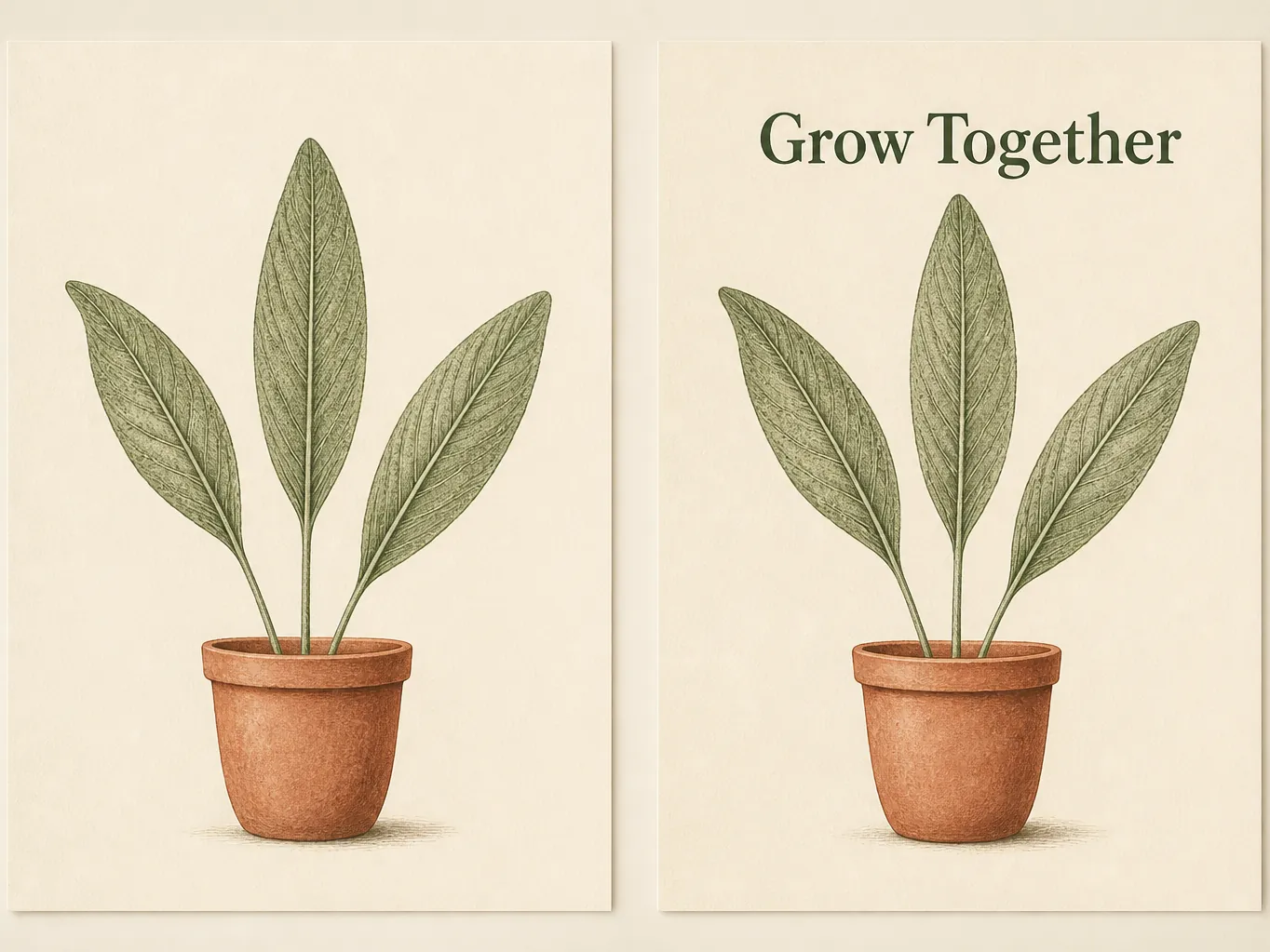
Botanical illustration shown without text and with Grow Together added above the leaves.

Start with a finished image file

You do not need the original design project to write text on image files. Upload a JPG, PNG, or WebP, describe the text addition, and review the updated image in your browser. This works for a saved photo or an exported graphic that needs a little more context. If you need to reuse words already visible in another image, extract the text first, then check it before including it in your instructions.

How to add text to image files in 3 steps

  1. Upload your photo or graphic

    Choose the image that needs new wording. The current uploader accepts JPG, PNG, and WebP files up to 10 MB. Start with a clear source image so you can check the added text against the original.

  2. Describe the text you want to add

    Write the exact wording and say where it should appear. For example: Add “Weekend Market” above the flowers in dark lettering. Keep the request focused on the new text, then run the edit.

  3. Check the result and download

    Read every word, including dates and prices. Check placement and the surrounding image, then download when the result is ready. Revise your request if the wording or layout needs another pass.

Add text to image files for real projects

Flower market photo with a Weekend Market headline for a social post.

Put the message inside your social post

A photo may reach someone before the post caption does. Add a short title to a travel image, a quote to a portrait, or an announcement to a community photo so the main message stays with the visual. For a weekend market post, a simple “Weekend Market” headline can establish the topic at a glance. Keep longer details in the post caption, and preview the image at a small size to check that the headline remains readable.

A text on photo editor for everyday tasks

ImageTextEditor keeps the workflow focused on the words you want to add.

Use your browser

Upload an image and work online without installing a separate desktop design app.

Bring the file you have

Start from a saved photo or exported graphic, even when the original project file is unavailable.

Explain the change in words

Give the AI the wording and context for your caption, label, or headline.

Review before sharing

Check the new text in the full image, including spelling, placement, and nearby details.

Try with daily credits

Free credits reset daily. Check the current allowance in the editor before starting another edit.

Keep the task small

Add one clear message, review it, and refine your instructions when the result needs adjustment.

FAQ: how to add text to image files

Practical answers before you upload a photo.
Upload your image, describe the exact words you want to add, and specify the intended placement. Run the edit, then review the new text and the surrounding image before downloading. A short, focused request is a useful starting point. If the result needs changes, revise the wording or placement instructions and review another edit.

Add text to image files for your next project

Add text to image files for your next post or invitation. Review the result and download when it is ready.