Image to Word Converter

Convert JPG, PNG, or WebP images into editable Word documents online. Download your DOCX file and edit the text in Word.

No image?Try one of these

Insert an image for free, or extract text with daily credits. No software to install.

What Image to Word Converter Helps You Do

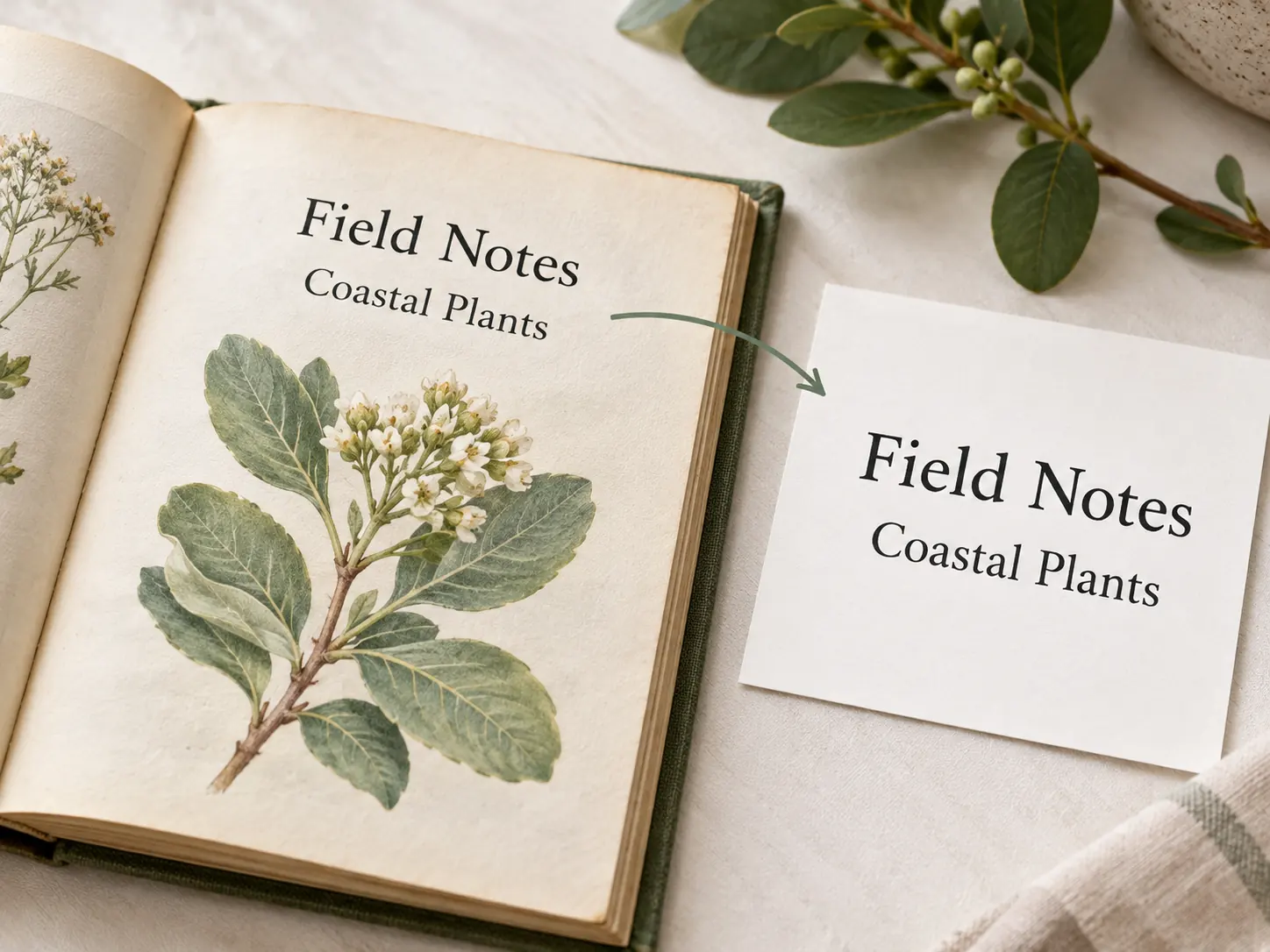
Botanical field guide beside a text sheet repeating the Field Notes and Coastal Plants headings.

Start With the Picture You Already Have

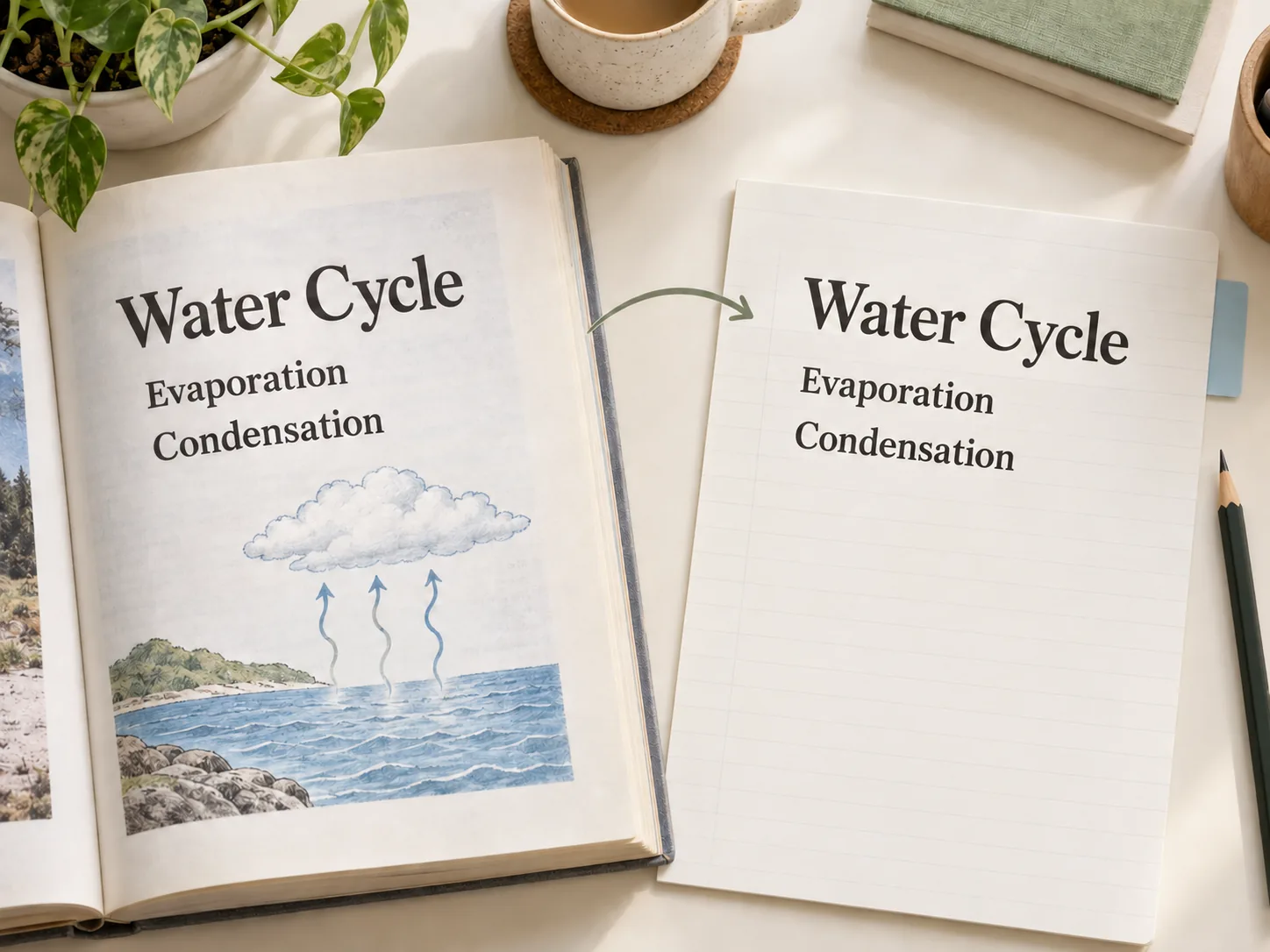
A printed notice, a photographed page, or a saved screenshot can be the starting point for a Word document. Upload a JPG, PNG, or WebP image up to 10MB and convert its text into an editable DOCX file. This JPG to Word workflow gives you a starting draft without typing every line by hand. Choose a clear image with the full passage visible, since blur, glare, and cut-off edges can leave gaps that you will need to correct.

A hand points a pencil at Room 204 while comparing a notice with its matching text copy.

Check the Details in Your Converted Text

Text recognition gives you a draft to check against the source image. Read through names, dates, numbers, and punctuation, then correct any errors in your Word document before sharing it. A blurred digit or an unusual font can change a detail even when the rest of the passage looks right. If your task is to change lettering inside the original picture, use edit text in image for that separate task.

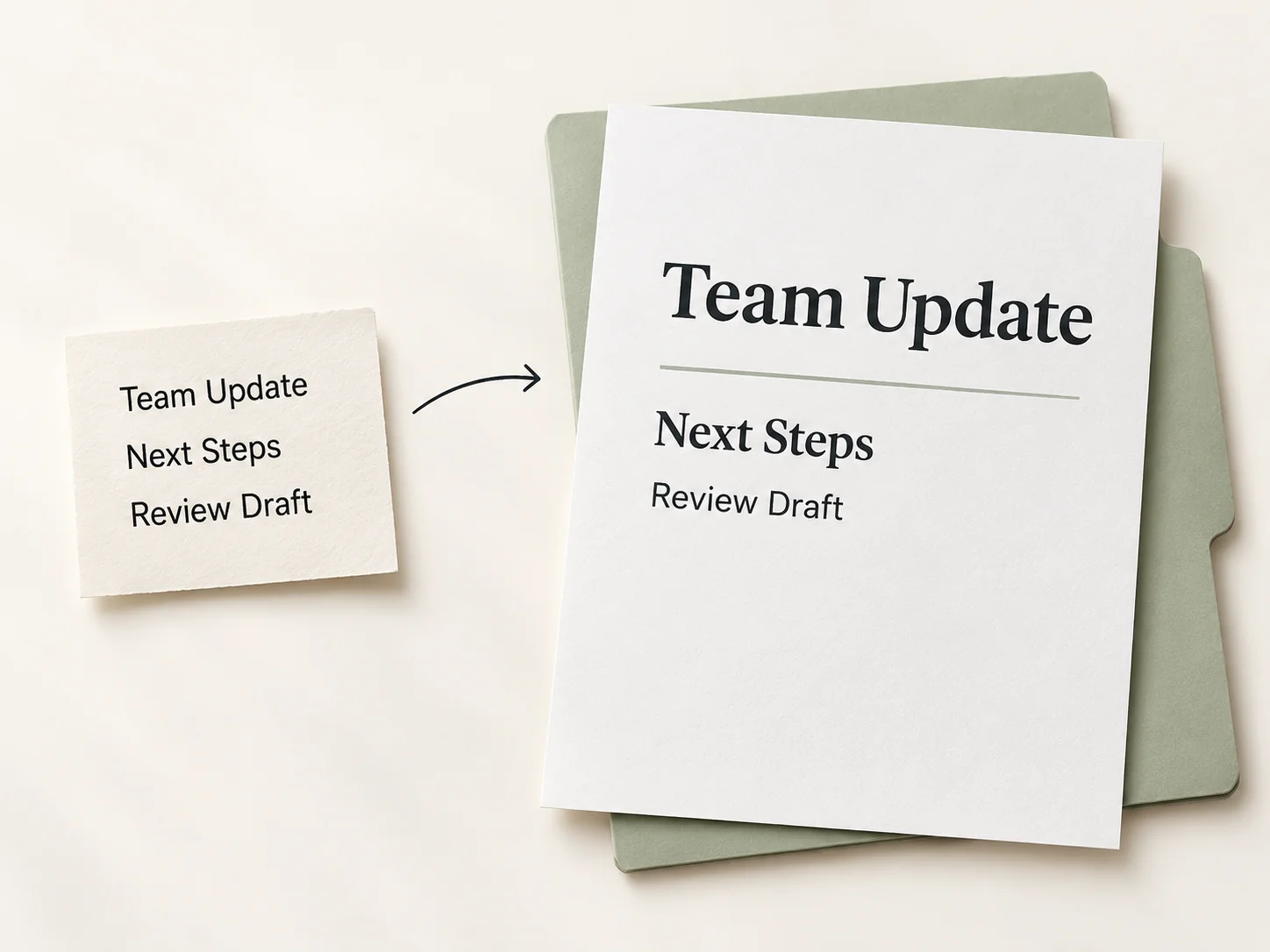
Plain Team Update text beside a document with the same words arranged into a heading hierarchy.

Download a Word File You Can Keep Working On

Download the converted result as a DOCX file and open it in Word to keep working on the content. You can apply headings, adjust spacing, add comments, and move passages to fit your document. Editable output gives you control over the words, but it does not guarantee an exact copy of the picture’s fonts, columns, or page design. Check tables and complex layouts after conversion, and keep the source image available while you make any final adjustments.

How to Convert JPG to Word in Three Steps

  1. Upload a Clear Image

    Choose a JPG, PNG, or WebP file up to 10MB. Include the full text area and use a straight, well-lit photo so the words are easier to read.

  2. Convert the Image to Editable Text

    Start the conversion to recognize the words in your image. Use the source as a reference when reviewing names, numbers, and paragraph breaks in the result.

  3. Download Your DOCX and Open It in Word

    Download the editable Word file, then open it in Word. Correct any recognition errors and adjust headings, spacing, or tables before saving your finished document.

When to Convert Image to Word for Your Work

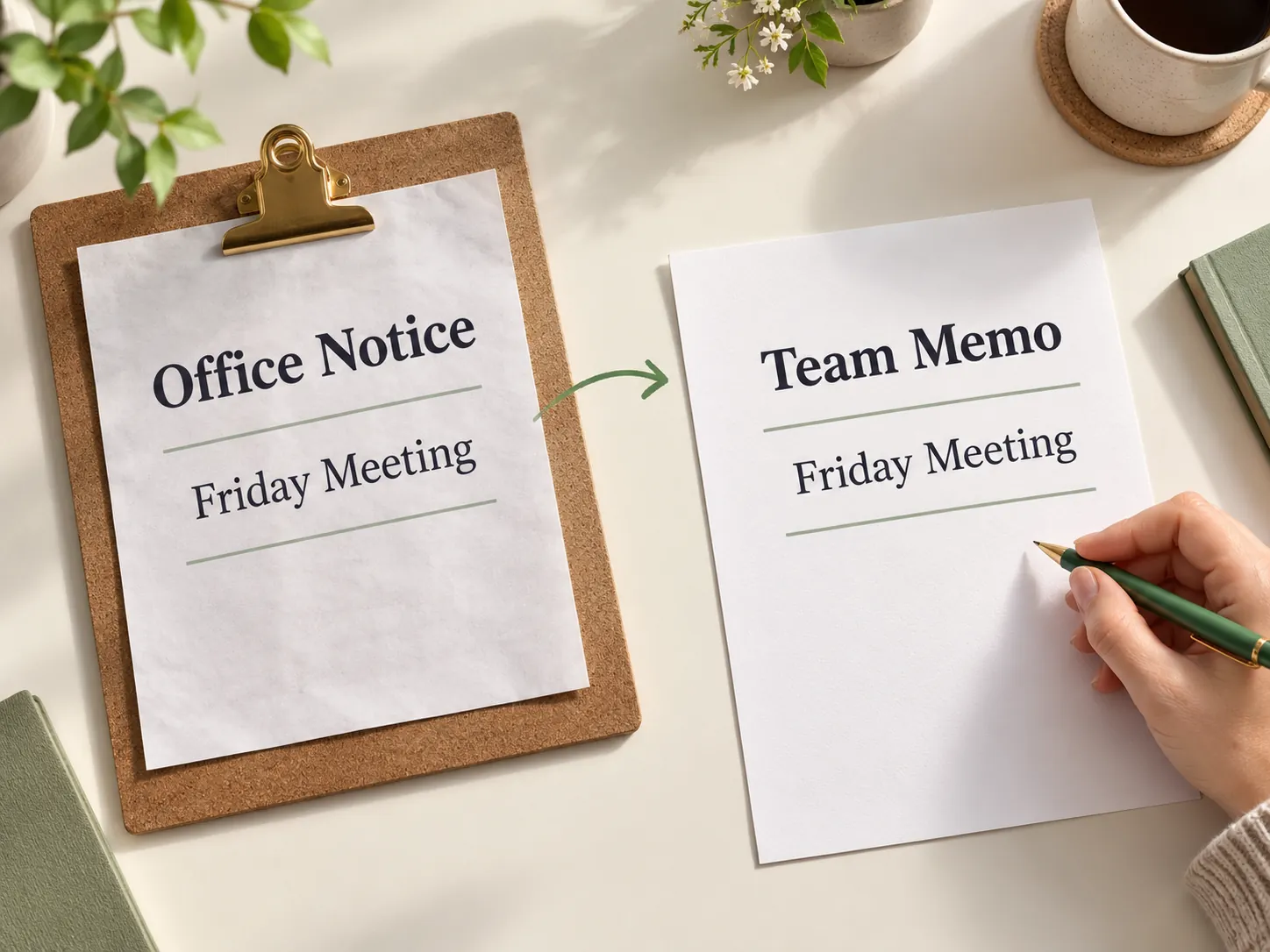
An Office Notice and a Team Memo share the Friday Meeting text, with a pen ready for revisions.

Turn a Printed Notice Into an Updated Team Memo

An office notice may arrive as a photo when the editable original is missing. Convert it to a Word file, download the DOCX, and revise the dates, room details, or instructions for the next announcement. Keep the source nearby so you can check each change and avoid carrying an old detail into the new memo. If you need to change the wording within a screenshot itself, open screenshot editor for that task instead.

Why Use Image to Word for Everyday Documents

Move from a picture to an editable Word file, while keeping control of the final document.

Try With Daily Credits

Free credits reset daily, so you can try the workflow before paying. The number of conversions depends on the current allowance and credit cost.

Work in Your Browser

Convert the image online without installing a separate recognition app. Open the downloaded DOCX in the Word app or browser version you normally use.

Use Common Image Files

Start with JPG, PNG, or WebP images up to 10MB. Photos, scans saved as images, and screenshots can follow the same conversion process.

Keep the Text Editable

Download recognized words in a DOCX so you can search, rewrite, and rearrange them. Pasting a picture alone would leave its lettering fixed.

Choose Your Own Formatting

Apply your preferred Word styles after opening the file. Adjust the converted text to fit an existing report or template and check its layout as you go.

Review Before You Share

Check the extracted text before it becomes part of a document. Keep the image as a reference for details that need careful verification.

Image to Word FAQ: Before You Start

Answers about the workflow, file limits, and what to check in your document.
Upload your image, run the conversion, and download the editable DOCX file. Open it in Word to review the text, make changes, and apply your preferred formatting. Check the output against the source first, especially names, dates, and numbers. Once those details are correct, save the finished document from Word in the format you need.

Start Your Next Draft With Image to Word

Try Image to Word with your next photo or screenshot. Download the editable DOCX, check the details, and make the document your own in Word.